My new/old process
"You get what you get and you don't get upset."
My 6-year-old said this to me the other week, completely unprompted, about something totally unrelated.
But it stuck.
Because that's exactly what happened at QBCC.
Context
I walked in expecting the tools I know work. I wanted Claude. I got Copilot. I wanted flexibility. I got a government approval process that moves at the speed of a committee meeting.
I didn't get upset. I got to work.
Somewhere between that project and my LinkedIn feed, I noticed a pattern. Every other post was either "AI will kill design" or "look at this insane thing I built with [tool I've never heard of]." And there I was, stuck with the Microsoft stack and Figma, trying to ship a prototype in a tide deadline.
Here's the thing: the constraint wasn't the problem. My relationship with it was.
Once I stopped thinking about what I didn't have and started building the best process with what I did, everything moved.
The Toolkit
Four tools. Real constraints. No workarounds.
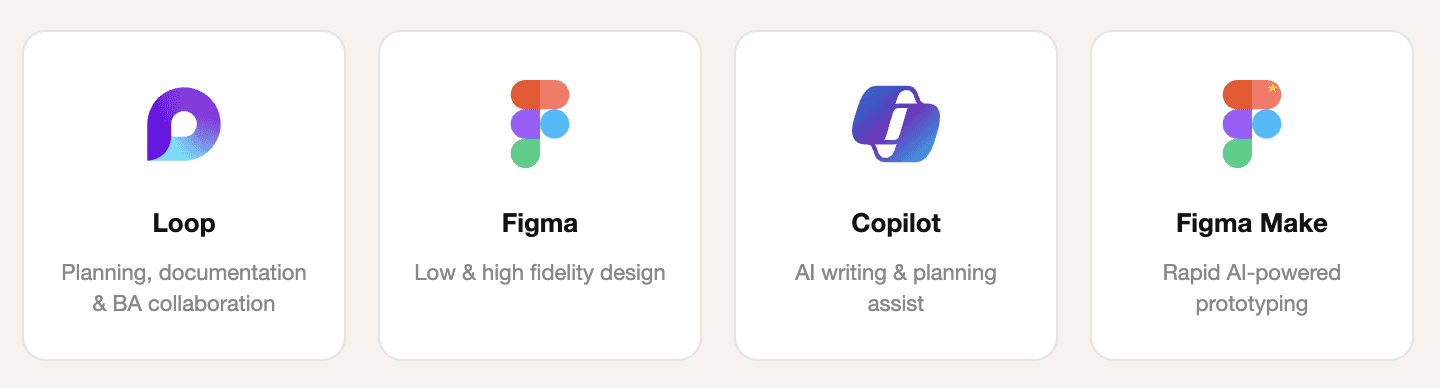
My process for this project
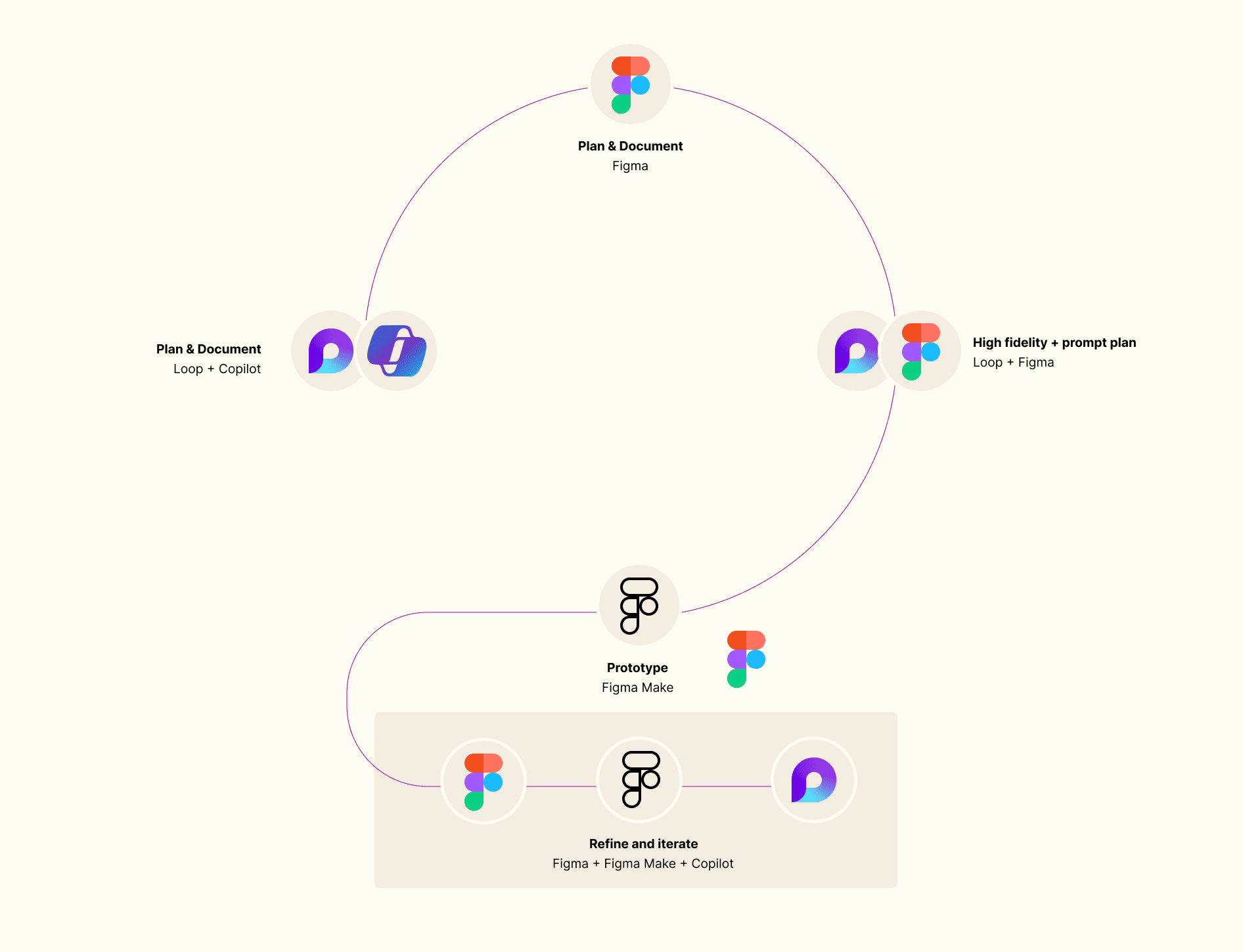
How the process actually works
Double diamand is cute, but process is context depend and most of the times we need to adapt to the circunstances. I'm not using the best AI in the market but I can use the ones available to make the impact needed. As my daughter says, "You get what you get and don't get upset"
01
Reflection & Planning
I started in Loop (Microsoft's collaborative doc tool, similar to Notion) to document the steps and plan the work. Loop let me collaborate with BAs and Project Managers in real time. I used Copilot to enhance the planning and structure documents faster.
01
Low Fidelity Wireframes
Before opening Figma, I opened a doc. I used Loop (Microsoft's answer to Notion) to map the work, collaborate with BAs and Project Managers in real time, and get aligned before anything visual happened. Copilot helped me structure and speed up the planning docs. Not glamorous. But this is where most projects actually win or lose.
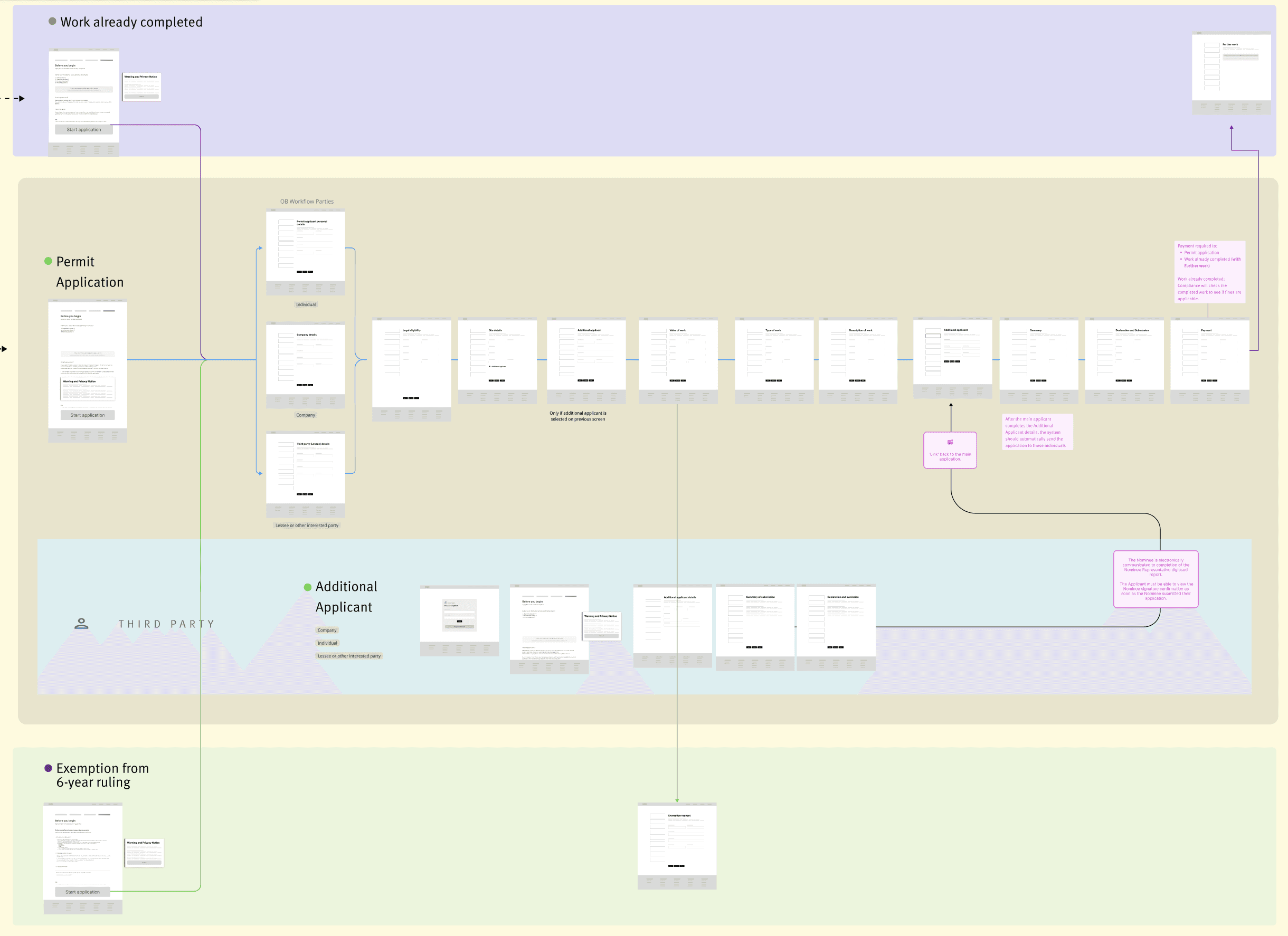
We ran workshops to define the structure of the process and validate the new workflow
03
Connect to the Queensland Design System
I moved to Figma to mature the planning into rough block sketches: low fidelity, fast, shareable. The point here isn't polish. It's alignment. Getting the business to say "yes, that's the journey" before investing time in anything detailed.
Each flow maps to a section of the original PDF, reframed for a digital step-by-step experience. The business can see themselves in it immediately because the content is already familiar.
The shortcut that isn't: Reusing 90% of existing PDF content meant we weren't inventing a new product. We were translating a familiar one. The business trusted it faster because it felt like theirs.
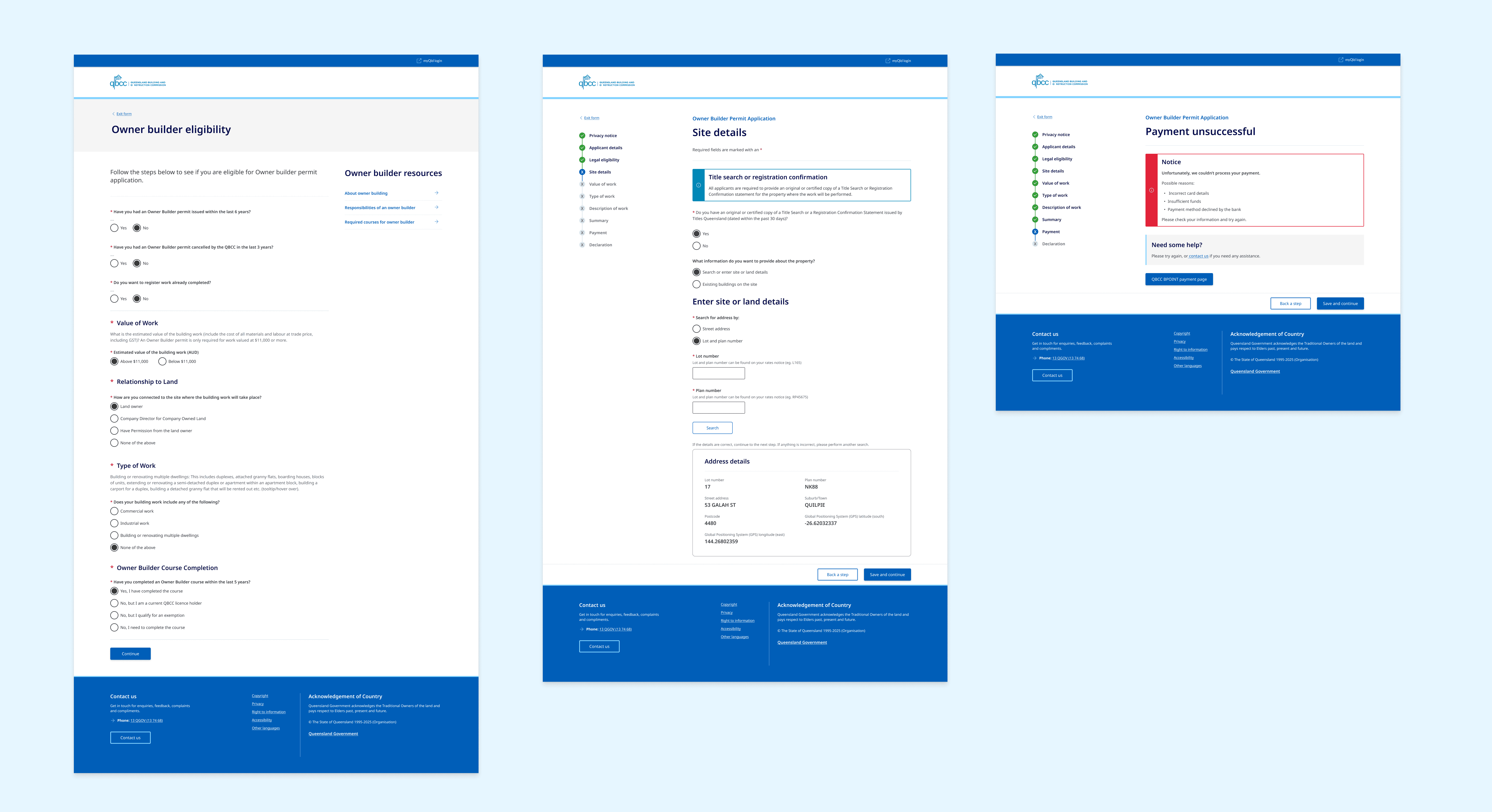
High fidelity design pointing to QGDS components
04
Prompt Planning in Loop
This is the part I don't see many designers talk about. Before I opened Figma Make, I went back to Loop and spent real time writing prompts. Not one-liners. Proper, structured briefs for each page, referencing the Business Requirements Document, the QGDS patterns, and the low-fi flows. I treated each prompt like a design brief to a junior designer. The more specific I was, the less I had to fix afterwards.
I also provided extra context from artefacts designed on Figma for the business.
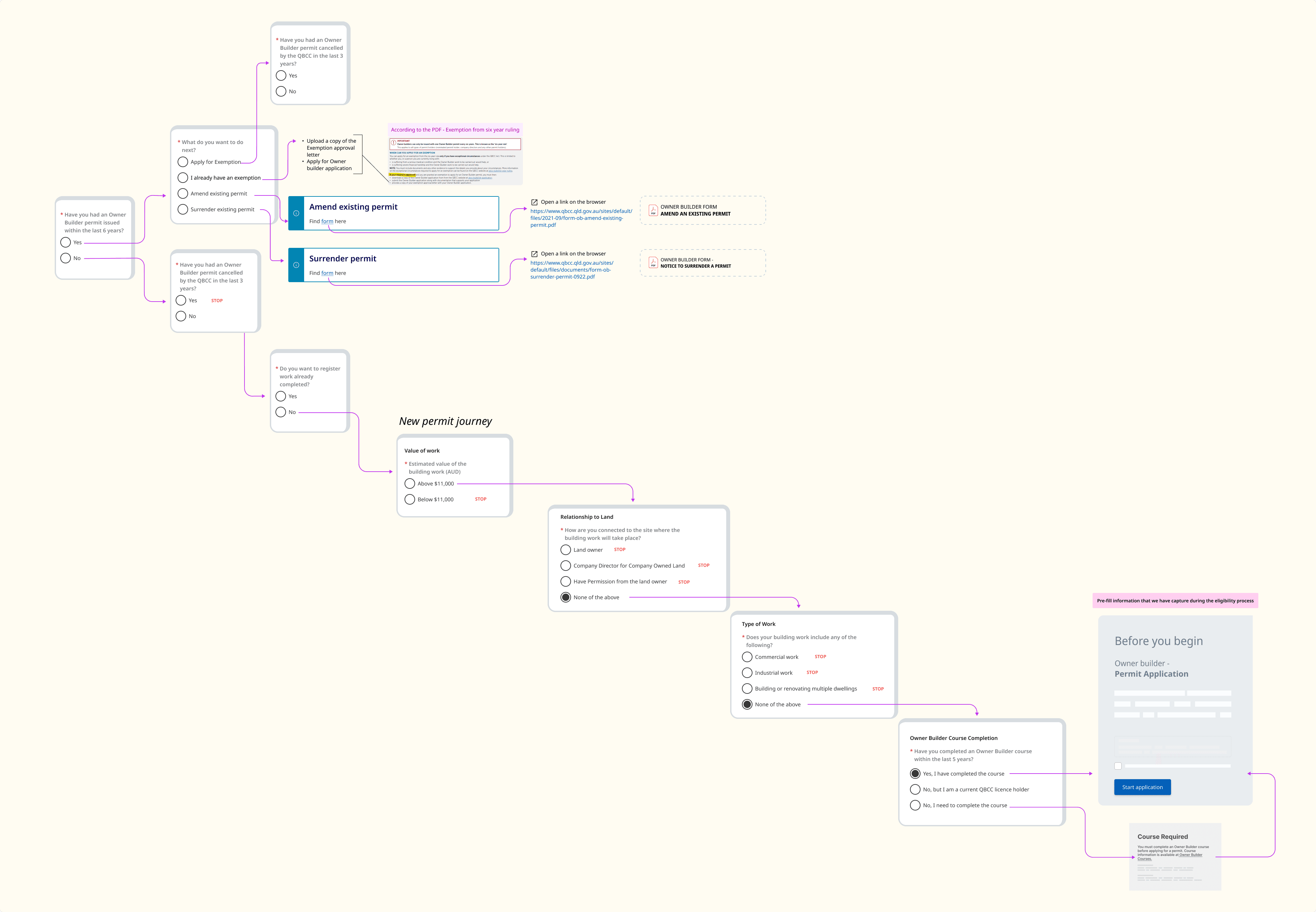
Flow and done quickly using Copilot on Figma
05
Figma Make: Testing and Failing Until Learning
I tried a couple of times without being descriptive enough. Figma Make would glitch on simple components, grabbing from a library that didn't match what I was prompting. This pushed me to get more granular on what I needed for each page.
Each page had a reference for the PDF section that would help the AI capture the right content, structure, and components, so instead of guessing, it was translating.
06
The turning point
Changing the AI modal from default to Claude modal and connect Figma Make to the existing QGDS UI Kit changed the game. A large, documented design system now powering the prototype with correct paddings, behaviours, and components. Within 3 key pages, I had 20 more iterations aligned with the scenarios we wanted to test with customers.
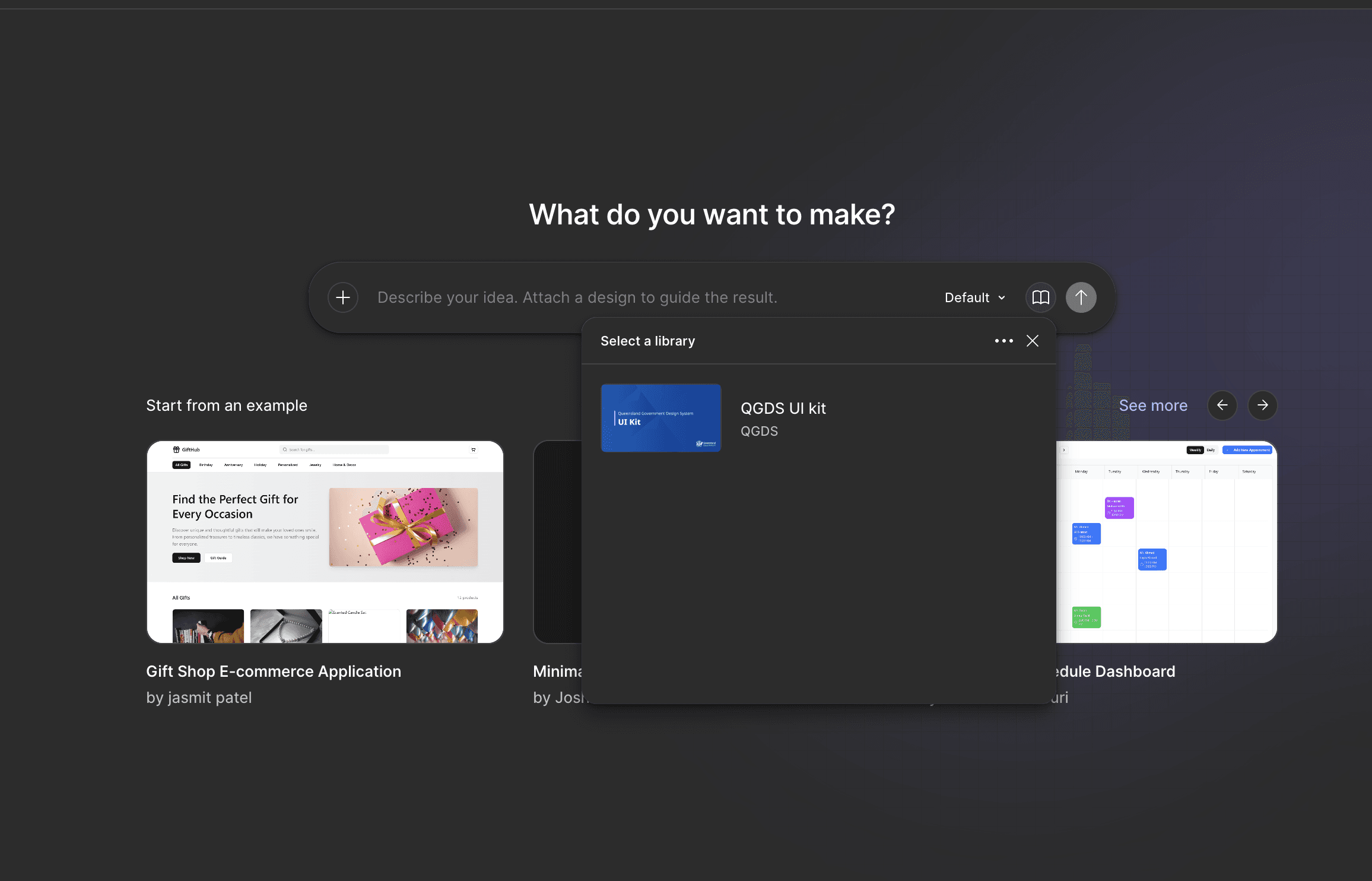
Linking QGDS library to Figma Make
Research planning
With 20 prototype screens ready, the next step was structuring how we'd actually test them. I used Copilot to help plan the user testing scenarios and session structure, mapping each screen to the real-world situations QBCC customers would face: applying for a new licence, managing financial declarations, navigating the deed of covenant.
The prototype wasn't just a deliverable. It was a research instrument. And planning how to use it was as important as building it.
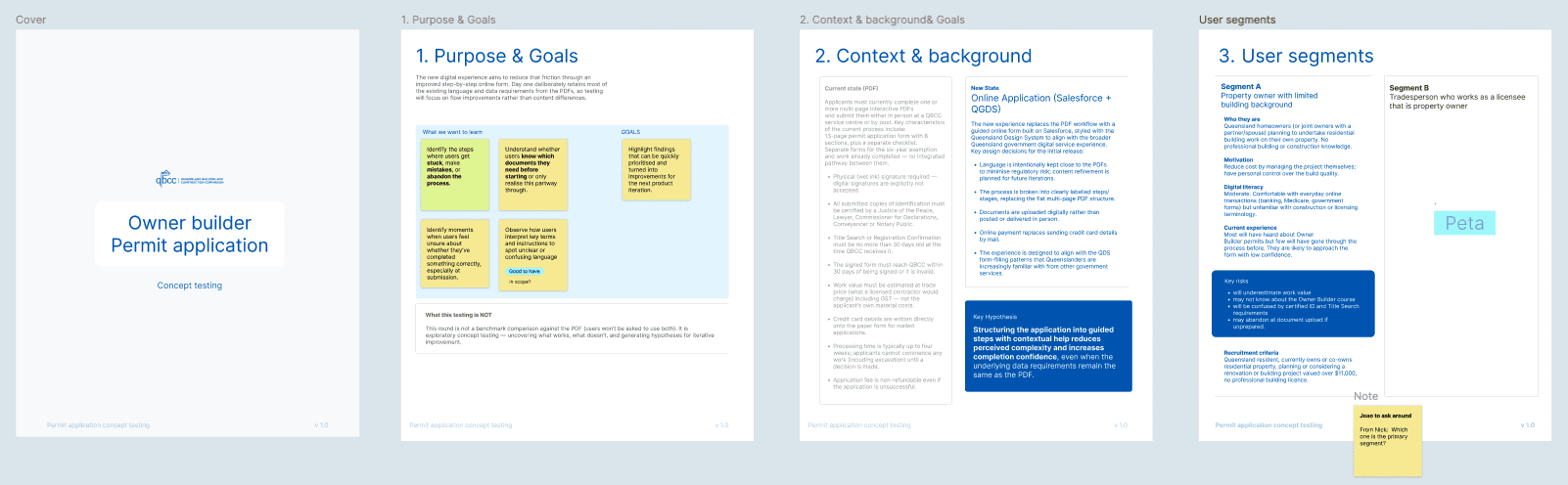
What I actually learned
Most people treat AI like a vending machine. Put a vague prompt in, expect something good to come out. Then blame the tool when it doesn't.
What this project taught me is that AI rewards preparation. The IA guide, the prompt planning, the design system alignment — all of that happened before I touched Figma Make. The AI didn't replace my thinking. It accelerated it. But only because the thinking had already been done.
I didn't have the flashiest tools. I had a clear process, a connected design system, and prompts that actually told the AI what I needed. That was enough to ship 20 prototype screens ready for user testing.
My kid was right. You get what you get. What you do with it is the whole job.